

Grading Calculator for Google Classroom Integration 2026
Managing grades can feel overwhelming sometimes — especially if you’re juggling assignments, quizzes, and projects while trying to keep everything organized.Quick Grade If you use Google Classroom, integrating a grading calculator into your workflow can save you hours of work and help you avoid mistakes.
A grading calculator built to work with Google Classroom helps you calculate scores, apply weights, track progress, and share results without as much manual effort. It reduces stress, improves accuracy, and lets you spend more time doing what you love — teaching.
Let’s break down how it works, why it’s helpful, and how you can get started.
What Is a Grading Calculator for Google Classroom?
A grading calculator for Google Classroom is a tool that works with your Classroom gradebook to calculate student grades automatically. Instead of manually adding up scores or entering formulas every time, the calculator does the math for you.
It can:
- Calculate percentages automatically
- Handle weighted grades (like homework 30%, tests 50%, participation 20%)
- Convert raw scores into final grades
- Generate class averages or performance reports
By integrating with Google Classroom, it pulls assignment scores directly, so you don’t have to re‑enter data.
Why Teachers Love Google Classroom Grading Calculators
1. Saves Time on Manual Calculations
Entering assignment scores, calculating percentages, and computing weighted grades by hand takes time. A grading calculator connected to Google Classroom removes all that repetitive work.
Once scores are in the system, the calculator does the rest.
How this helps you: You can grade faster and focus on feedback and instruction instead of math.
2. Reduces Errors and Inconsistencies
Manual grading often means moving numbers between spreadsheets, flipping between tabs, or writing formulas that might break. A grading calculator reduces these manual steps.
What it avoids:
- Math errors
- Misplaced weights
- Data entry mistakes
Consistent results mean fairer grading and less follow‑up with students about mistakes.
3. Automates Weighted Grading
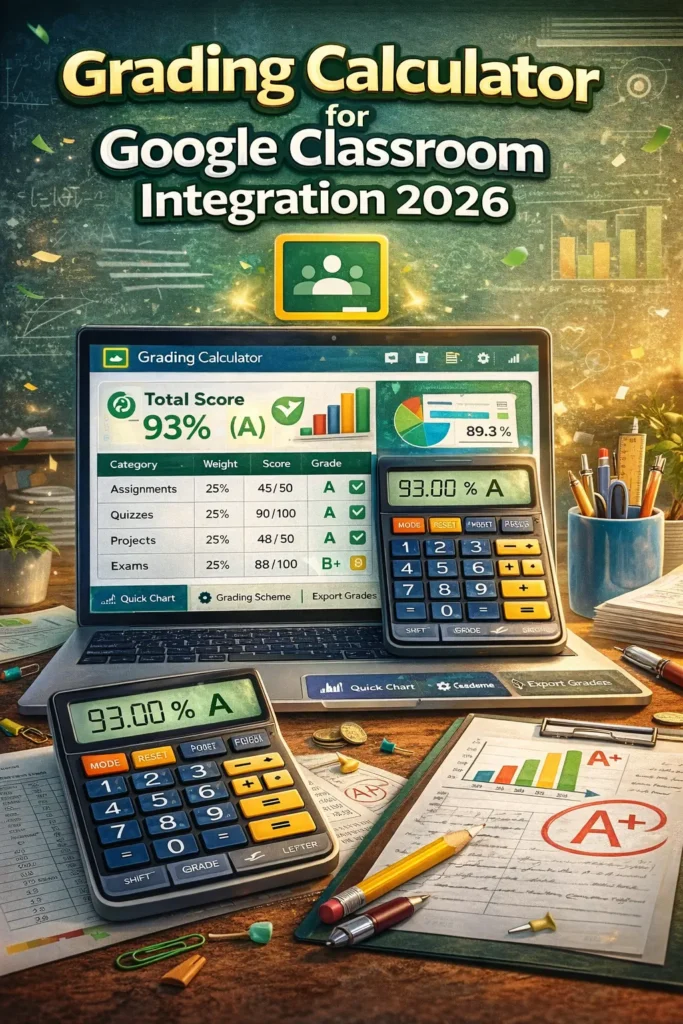
Every class weights assignments differently. With a grading calculator that integrates with Google Classroom, you can set:
- Homework weight
- Quiz weight
- Test weight
- Project weight
- Participation weight
…and the calculator automatically uses those weights when generating final grades.
This saves the headache of doing weighted math by hand.
4. Tracks Student Progress Over Time
Good grading tools don’t just calculate grades — they track progress throughout the term.
With integration:
- You get real‑time updates as assignments are graded
- You can spot trends, like topics where many students struggled
- You can share performance trends with students and parents
This allows you to intervene early and support students who need extra help.
5. Provides Clear Reports and Feedback
Once the calculator has computed grades, you can often generate reports and share them easily.
You can create:
- Final grade summaries
- Class average reports
- Progress charts
- Individual student reports
These make discussions with students and parents easier because the results are clear and organized..YOU CAN ALSO READ:Speed Up Essay Grading Using a Quick Grade Calculator
How to Use a Grading Calculator with Google Classroom
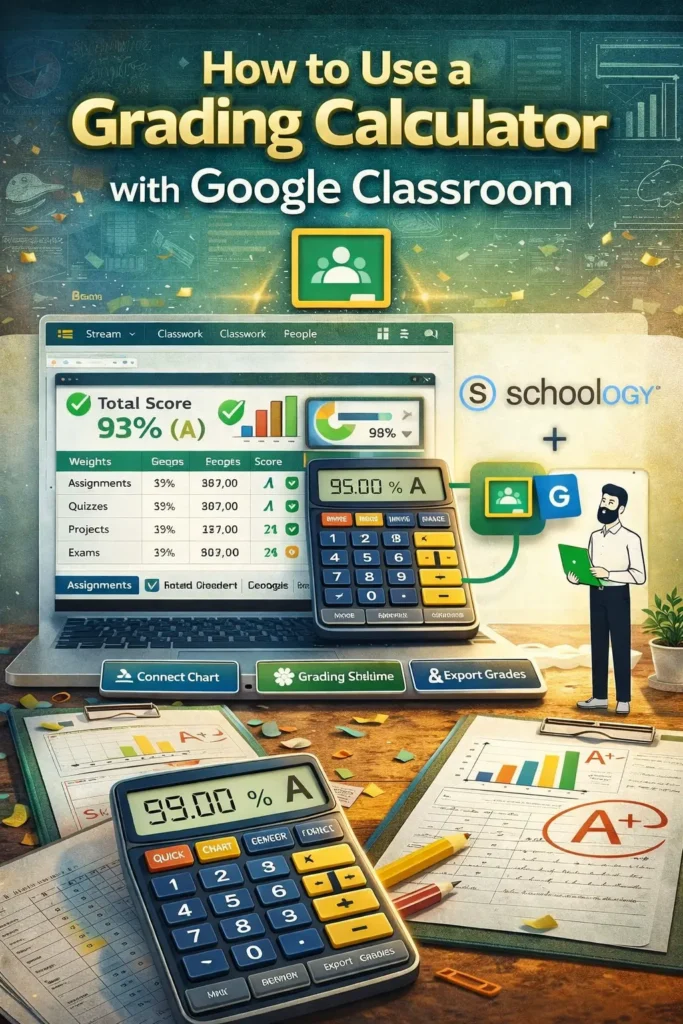
Most grading calculators that work with Google Classroom follow the same basic steps:
1. Connect to Google Classroom
Allow the tool access to your Classroom data so it can pull assignment scores.
2. Set Up Your Grading Rules
Define your grading scale, weights, and any rubrics you use for essays or projects. Easy Grader,
3. Import Student Scores
Pull the latest assignment scores from Google Classroom into the calculator.
4. Calculate Grades
Let the calculator compute final grades, percentages, and averages based on your rules.
5. Review and Adjust
If needed, review the results and make manual adjustments (like extra credit or attendance adjustments).
6. Share Results
Export or post final grades back into Google Classroom or share reports with students.
Tips for Using a Grading Calculator With Google Classroom
- Keep your grade categories consistent — Decide early how you’ll weight quizzes vs tests vs homework.
- Use rubrics for clarity — If you grade essays or long responses, rubrics make scoring fair and transparent.
- Double-check weights add up to 100% — This avoids grading errors and ensures accurate final scores.
- Export backups — Regularly save grade reports so you have records outside the grading tool.
(FAQs)
1. Do I need extra software to integrate a grading calculator with Google Classroom?
Most tools are web‑based and simply require access to your Google Classroom account. You don’t usually need special software.
2. Can a grading calculator handle weighted assignments?
Yes. One of the main benefits is automatic handling of weighted grades so you don’t have to calculate them manually.
3. Will using a grading calculator replace my gradebook?
It can complement your gradebook. Some teachers continue using Google Classroom’s gradebook but use a calculator for complex weighting or reporting.
4. Is it safe to connect a grading calculator to Google Classroom?
Reputable tools follow standard security practices. Always check privacy policies and grant only the permissions needed for grading.
5. Can students see grade calculations?
That depends on the tool and how you choose to share results. Some let you share reports or final grades directly, while others keep results for teacher use.
Final Words
Integrating a grading calculator with Google Classroom can be a huge time saver and stress reducer for teachers. It automates calculations, improves accuracy, and makes tracking student progress easier. Whether you’re grading tests, quizzes, or projects with weighted scores, a grading calculator helps you focus on instruction rather than math.
By streamlining grading and providing clear reports, these tools help you work smarter, not harder. If you’d like suggestions on the best grading calculators that integrate with Google Classroom, just let me know!


