

Grading Calculator Tips for Teachers with Custom Scales
As a teacher, grading can often feel like a balancing act, especially when you’re using custom grading scales. Whether you’re following a non-traditional grading system or just want to personalize your grading approach, using a grading calculator Quick Grade with custom scales can save you time and ensure accuracy. In this article, we’ll explore some handy tips for making the most out of grading calculators when you’re working with custom scales.
Why Use Custom Grading Scales?
Custom grading scales are essential when the traditional letter grading system doesn’t fit your teaching style or course objectives. You might want to:
- Weight assignments differently based on their importance.
- Use a non-standard scale (like 1-5 or 0-1000) instead of the usual A-F.
- Account for participation or other non-test factors in your grades.
Custom grading scales give you more control over how grades are calculated and allow you to design a grading system that fits your specific teaching goals.YOU CAN ALSO READ: Handling Extra Credit in Quick Grade Calculators
Tips for Using Grading Calculators with Custom Scales
1. Choose a Grading Calculator with Customizable Features
The first step in using a grading calculator for custom scales is selecting one that allows flexibility. Look for calculators that let you:
- Set your own point values for different assignments, tests, or projects.
- Customize letter grade boundaries if you’re not using the traditional A-F system.
- Add weighted categories for different types of assignments (e.g., quizzes, exams, participation, homework)., Easy Grader
Many popular apps like QuickGrade and Gradebook Pro allow for custom configurations that fit your specific grading needs.
2. Set Up Weighting for Different Categories
In most custom grading systems, you’ll want to assign different weights to assignments. For example, maybe you want exams to be worth 50% of the final grade, homework to be 30%, and participation to make up 20%. Grading calculators that allow weighting will make this process much easier.
To set it up, follow these steps:
- Input each category (e.g., homework, participation, exams).
- Assign the appropriate weight (e.g., 50% for exams).
- The calculator will then automatically adjust each assignment’s score based on its category weight.
This method ensures that more important assignments (like final exams) are given more weight in the final grade.
3. Use Custom Scales to Track Non-Traditional Grading Systems
If your grading system isn’t based on the typical A, B, C, D, F scale, a custom grading calculator can help you convert scores into whatever system you prefer.
For instance:
- If you’re using a 1-5 scale, set the thresholds for each score in the calculator, like this:
- 5 = Excellent
- 4 = Good
- 3 = Satisfactory
- 2 = Needs Improvement
- 1 = Failing
By using these custom parameters, you ensure that the grades are recorded accurately without having to manually convert scores each time.
4. Keep a Clear Grading Rubric for Each Assignment
A grading calculator is only as good as the rubric you set up for each assignment. If your grading system includes multiple components, such as participation, effort, or creativity, make sure your grading calculator reflects that.
To create a clear rubric:
- Define the components: What factors contribute to the grade? Are you grading on completion, effort, accuracy, or creativity?
- Assign point values: Decide how many points each component is worth (e.g., 10 points for effort, 15 for accuracy, etc.).
- Custom feedback options: Some grading apps, like Teacher Gradebook, allow you to add personalized comments that can explain the reason behind each grade.Quick Grade
With a clear rubric and a customized grading calculator, you’ll be able to provide accurate feedback while ensuring consistency.
5. Double-Check for Accuracy and Fairness
Even with a custom grading scale, it’s important to double-check your calculations. Mistakes in setting up custom scales or weighting can lead to grade discrepancies. Some tips for ensuring accuracy:
- Test with sample scores: Before entering all your grades, try testing the calculator with a few sample assignments to see if the final grade aligns with your expectations.
- Double-check weightings: Verify that the total weight of all categories adds up to 100%. If the weight is incorrectly set, it could impact the final grades.
Many grading calculators will show a summary of the weights and scales for each assignment, making it easier to verify that everything is correct.
6. Review and Adjust as Needed
Custom grading scales should be flexible. If you notice that certain assignments are consistently undervalued, or if a student is struggling due to your grading scale, don’t be afraid to make adjustments.
- Modify weights: If a particular category is too heavily weighted, try adjusting it so students can show improvement in other areas.
- Consider participation: If you’re grading based on participation, ensure it doesn’t dominate the grade unless it’s a major factor in your class.
Regularly reviewing your grading system will ensure that it’s fair and effective for all students.
Benefits of Using Grading Calculators with Custom Scales
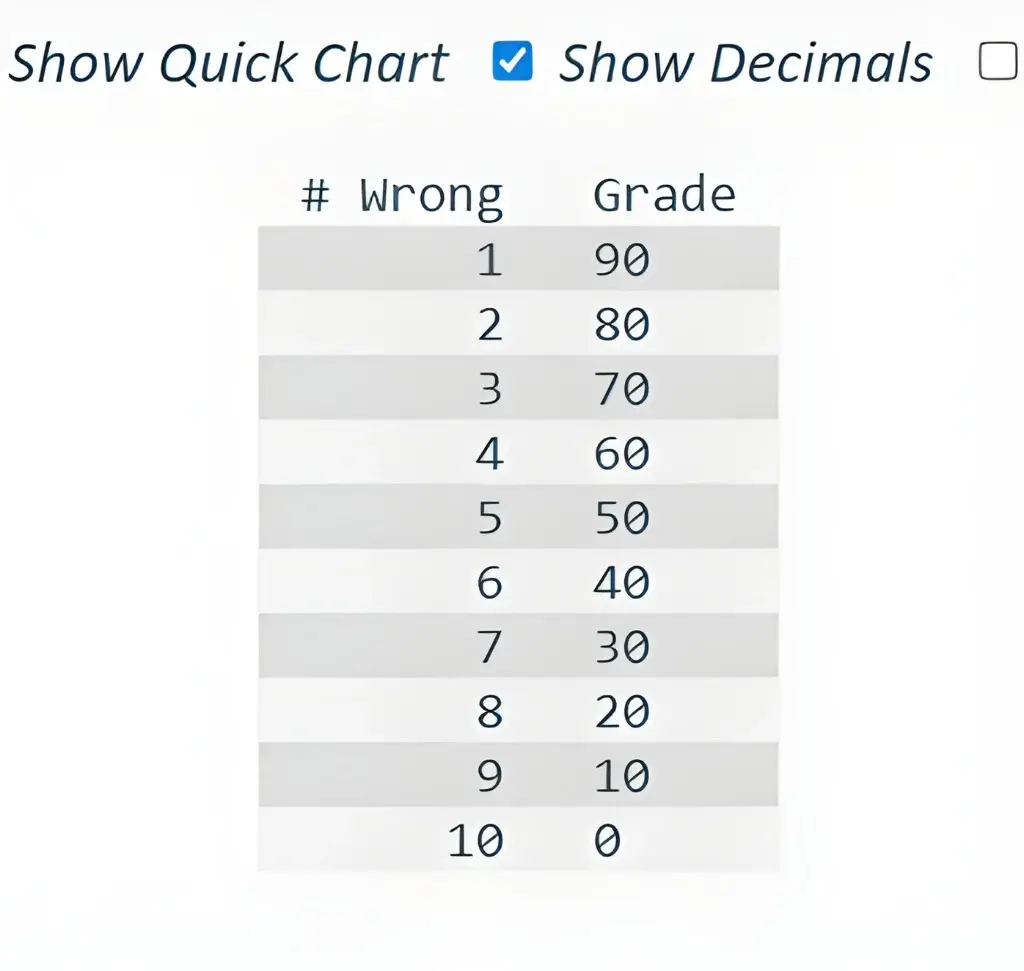
Using grading calculators with custom scales can save you significant time and effort. Here are some of the key benefits:
- Efficiency: With automated calculations, you no longer have to manually adjust grades.
- Accuracy: Custom scales ensure that you’re grading according to your exact requirements.
- Clarity: Students can clearly understand how their grades are calculated, which helps build trust.
- Flexibility: You can change the scale as needed to suit different courses or grading periods.
FAQs
1. Can I set up custom grading scales for different subjects?
Yes, many grading calculators allow you to set up different grading systems for each subject, making it easier to tailor the grading process based on the course requirements.
2. How do I prevent unfair grading with custom scales?
Make sure to create a clear rubric for each assignment and carefully consider the weight of each category. Double-check your scale and weighting to ensure fairness.
3. Can I track extra credit in a custom grading system?
Absolutely! Many grading calculators let you include extra credit as a separate category or factor it into existing categories.
4. How can I adjust the custom grading scale if it’s not working?
Most grading calculators allow you to adjust the grading scale, weightings, or point values at any time. Always test your changes to ensure the final grade is accurate.
5. Are there any free grading calculators with custom scales?
Yes, several free grading calculators like QuickGrader offer custom scale options. While they may have limited features compared to paid versions, they are still effective for simple grading systems.
Conclusion
Custom grading scales give teachers more control over their grading systems, allowing them to better align grades with learning goals. Grading calculators are the perfect tool to manage these custom scales efficiently and accurately. By choosing the right tool and following these tips, you can save time while ensuring that your grading process is consistent and fair.


