

How to Use a Grading Calculator to Avoid Errors
Grading can be a daunting task, especially when you’re handling large volumes of assignments and assessments. Between manual calculations, tracking different grading criteria, and ensuring consistency, it’s easy to make mistakes. These errors can lead to inaccurate grades,Quick Grade, which not only impact students’ progress but also add unnecessary stress for you.
That’s where a grading calculator can be a game-changer. These tools can help you avoid errors, ensure accuracy, and streamline the entire grading process. Here’s how you can use a grading calculator to avoid common grading mistakes and make your life a lot easier.
1. Automate Calculations to Eliminate Human Error
One of the easiest ways to make errors while grading is manual calculations. Adding up points or converting raw scores to percentages can sometimes lead to simple mistakes. With a grading calculator, these calculations are automated, meaning the math is done for you.
- How It Works:
You enter the students’ scores, and the calculator automatically calculates their grades for you, including percentage scores and final grades. - Why It Avoids Errors:
The calculator does all the math, so there’s no need for you to worry about adding, multiplying, or dividing scores by hand.
Tip: When using a grading calculator, double-check that all the scores have been entered correctly. Once the scores are in, the calculator will give you the correct results.
2. Use Custom Rubrics for Consistent Grading
Grading essays, projects, and other open-ended assignments often involves subjective judgment. Without a clear structure or rubric, it’s easy to unintentionally apply different standards to different students, leading to inconsistent grading.
- How It Works:
Many grading calculators let you create and use custom rubrics. By defining specific criteria (such as clarity, argument strength, or grammar), the calculator will help you grade consistently and prevent any bias. - Why It Avoids Errors:
Rubrics ensure that you’re evaluating each student on the same criteria, which makes your grading more consistent. You don’t have to rely on your memory or subjective judgment for each assignment.
Tip: Before starting the grading process, make sure you’ve set up a clear rubric in the calculator and ensure all students are being graded according to the same standards.YOU CAN ALSO READ:Grading Calculators for Teachers: Why They Work
3. Track Assignments with Pre-Set Weighting
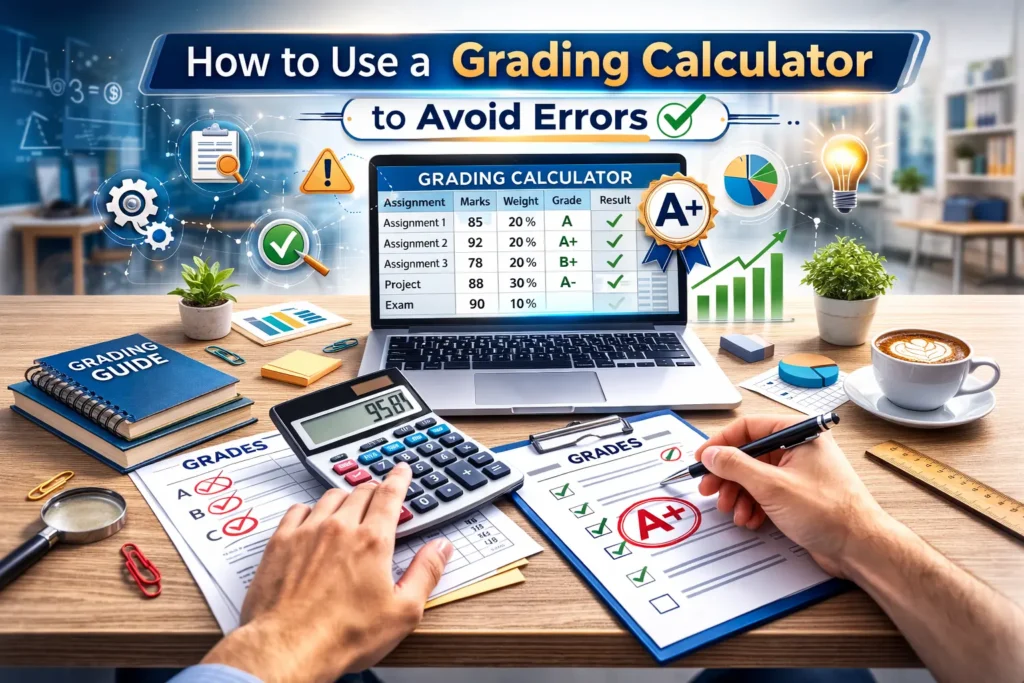
In many grading systems, assignments have different weights (e.g., homework = 30%, quizzes = 20%, exams = 50%). Manually applying these weights to each student’s assignments can be confusing and prone to error. Grading calculators can handle this process for you.
- How It Works:
You input the weight of each assignment type, and the calculator will automatically apply the correct weight when calculating final grades. For example, if a quiz is worth 20% and the student scored 80%, the calculator will automatically multiply the score by 0.20 and add it to the final grade. - Why It Avoids Errors:
The calculator automatically calculates weighted grades, so you don’t have to worry about doing it manually. This reduces the risk of mistakes when dealing with complex grading systems.
Tip: Always ensure that the weights for each category add up to 100%. Most grading calculators will let you know if the total weight is off.
4. Use Bulk Grading Features to Save Time
For large classes, grading can quickly become overwhelming, especially if you’re doing it manually. Bulk grading features in many grading calculators allow you to process multiple student scores at once.
- How It Works:
Some tools allow you to upload a spreadsheet of student scores or enter multiple scores at once, and the calculator will grade everything at once. You can also use bulk grading for multiple-choice tests or assignments with similar answers. - Why It Avoids Errors:
By inputting data in bulk, you avoid the risk of entering the same information multiple times or accidentally leaving out a student’s score. The tool does all the heavy lifting for you.
Tip: When using bulk grading, double-check the data before you upload it. Once the scores are uploaded, the calculator will grade all the assignments for you.
5. Review and Edit Grades with Ease
Even with the help of a grading calculator, mistakes can still happen. Perhaps you entered the wrong score, or you need to adjust a grade for extra credit. Fortunately, most grading calculators let you easily edit or adjust grades.
- How It Works:
If you realize an error after calculating grades, you can quickly go back and adjust individual scores or make changes to the final grade. - Why It Avoids Errors:
The flexibility to edit grades allows you to correct mistakes without having to start the grading process all over again. This ensures that the final grades are as accurate as possible.
Tip: After you’ve finished grading, take a moment to review the final grades and check for any errors. If needed, make quick edits before finalizing everything.
6. Use Instant Reports to Spot Mistakes Quickly
One of the best features of grading calculators is the ability to generate instant reports. Many calculators provide a breakdown of how each student did on each assignment, and some even give you a class average.
- How It Works:
After entering the grades, you can generate a report that shows you the final grade for each student, the average score for the class, and other relevant data. - Why It Avoids Errors:
Instant reports give you an overview of the entire class’s performance, making it easier to spot any discrepancies or mistakes before finalizing grades.
Tip: Use the reports to spot trends in student performance and identify any areas where there might be errors or inconsistencies.
Best Grading Calculators to Avoid Errors
Here are some of the top grading calculators that help teachers avoid errors and streamline the grading process:
- Google Sheets + Add-ons (Flubaroo, Gradebook): Customizable and free, with easy integration for grading.
- GradeHub: Simple tool for weighted grades and rubrics.
- Quizizz: Great for grading quizzes and offering instant feedback.
- Gradescope: Ideal for rubric-based grading, especially for essays and projects.
(FAQs)
1. Can grading calculators completely eliminate human error?
While grading calculators significantly reduce the chance of error, it’s still important to double-check your inputs. Errors can still occur if the wrong data is entered into the system.
2. How do grading calculators handle weighted grades?
Grading calculators automatically apply weights to each assignment based on the settings you input, ensuring that the weighted grade is calculated correctly without needing manual math.
3. Can I adjust grades after calculating them in a grading calculator?
Yes! Most grading calculators allow you to edit individual scores or make adjustments to grades after the calculation is complete.
4. Do grading calculators work for essays and subjective assignments?
Yes, many grading calculators support rubric-based grading, which is useful for grading essays, projects, or other subjective assignments.
5. Are grading calculators free to use?
Many grading calculators offer free versions, with the option to upgrade to premium features for more advanced functionality. Tools like Google Sheets and Quizizz are free to use, while others may require a subscription for additional features.
Final Thoughts
Grading can be a stressful, time-consuming process, but with a grading calculator, you can avoid errors, save time, and ensure accuracy. By automating calculations, tracking progress, and offering consistent feedback, grading calculators are essential tools for any teacher looking to streamline their grading system.
Start using a grading calculator today to make your grading process more efficient, accurate, and error-free!


