

How to Create Custom Grading Scales in a Calculator
As a teacher, you know that grading isn’t always one-size-fits-all. Whether you’re using a point-based system, percentage system, or weighted grades, Quick Grade customizing your grading scale to fit your classroom’s needs can make the process more efficient and fair.
Grading calculators allow you to set up custom grading scales so you can evaluate students based on your specific grading criteria. By setting up a custom scale, you can ensure that you’re grading in a way that aligns with your teaching goals and provides meaningful feedback.
Here’s a guide to help you create custom grading scales in a calculator, whether you’re using a simple online tool or an advanced gradebook system.
1. Understand Your Grading System and Requirements
Before setting up a custom grading scale, you need to decide which grading system works best for your class. Different classes or assignments may require different grading methods.
Common grading systems include:
- Percentage-based grading: For example, a student needs 90% to earn an A.
- Point-based grading: Each assignment or exam has a set number of points.
- Weighted grading: Different categories (e.g., homework, quizzes, exams) have different weight percentages in the final grade.
Make sure you clearly define:
- How much each assignment category is worth (e.g., homework = 30%, quizzes = 20%, exams = 50%).
- What constitutes a passing grade (e.g., 60% for a C, 70% for a B, 90% for an A).YOU CAN ALSO READ:Why Grading Calculators Are a Teacher’s Best Friend
2. Choose a Grading Calculator Tool
Once you’ve decided on your grading scale, it’s time to pick a grading calculator that allows you to create custom grading scales. Here are some options you can consider:
- Google Sheets with Add-ons: With tools like Flubaroo or Gradebook, you can create custom scales and automate grade calculations.
- GradeCalculator: An easy-to-use tool where you can enter custom grade scales and weights.
- Excel: Use formulas to set up custom grading scales and weight categories.
- Online Tools: Platforms like GradeHub or Gradescope let you input your own grading criteria and apply them across all assignments.
3. Set Up Your Custom Grading Scale in the Calculator
Now that you’ve chosen your grading calculator, let’s walk through how to set up your custom grading scale. The steps will vary depending on the tool you’re using, but here’s a general guide:
Step 1: Define Your Grading Categories
If you’re using weighted grades (e.g., homework, quizzes, exams), enter your categories into the calculator. Most tools will allow you to input these categories and assign weights to each.
For example:
- Homework = 30%
- Quizzes = 20%
- Exams = 50%
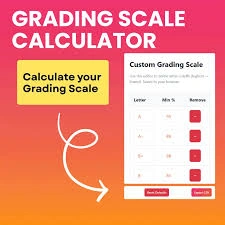
Step 2: Set Up Grade Boundaries
You’ll need to define what percentage or points are required to earn each grade. Here’s an example of grade boundaries based on percentages:
- A = 90% and above
- B = 80% to 89%
- C = 70% to 79%
- D = 60% to 69%
- F = Below 60%
In some tools, you’ll enter these boundaries directly into the settings for the grading scale.
Step 3: Input Assignment Scores
For each assignment or exam, input the raw scores (e.g., 15/20 for a quiz). If the tool allows, you can assign a weight to each item, so the calculator will apply the appropriate weight when calculating the final grade.
Step 4: Final Grade Calculation
Once all your categories and assignments are entered, the calculator will use your custom scale to compute the final grades based on the weights you’ve set.
4. Test Your Grading Scale
Before you use your custom grading scale for the whole class, it’s a good idea to test it with a few example scores. This will allow you to ensure the calculator is properly applying your scale and that it’s giving accurate results.
- Check with sample data: Input a few student scores and see if the grades match what you expect based on your grading system.
- Adjust if necessary: If the results are off, double-check your grade boundaries and category weights.
5. Automate Future Grading
Once you have your custom grading scale set up, you can easily apply it to future assignments. Many calculators and gradebook tools let you:
- Auto-grade assignments like quizzes or tests (especially if they’re multiple-choice).
- Import data from spreadsheets or online forms to automatically calculate final grades.
Tip: Using a tool that integrates with Google Forms or Moodle makes it even easier, as you can instantly upload student responses and get final grades without entering each score manually.
6. Share Final Grades with Students
Once you’ve generated final grades, grading calculators make it easy to export or share the results with students. Most tools allow you to:
- Generate final grade reports or summaries.
- Share grades directly through email or an online portal (e.g., Google Classroom or Canvas).
This way, students can get immediate feedback on their performance and know exactly where they stand in the class.
Best Tools for Creating Custom Grading Scales
Here are a few tools you can use to create custom grading scales and calculate final grades:
- Google Sheets with Add-ons (e.g., Flubaroo, Gradebook): Free, customizable, and integrates with Google Classroom.
- GradeHub: Simple tool for handling weighted assignments and creating custom rubrics.
- Excel: Great for teachers who like working with spreadsheets and formulas to track and calculate grades.
- GradeCalculator: Free tool that allows you to input grading criteria and track student performance easily.
(FAQs)
1. Can I use custom grading scales for every type of assignment?
Yes! Custom grading scales work for any type of assignment, whether it’s multiple-choice, essays, or projects. You just need to input the scores and weights correctly.
2. Can I adjust the grading scale mid-semester?
Yes! If you need to adjust your grading scale, most tools let you modify categories, weights, and grade boundaries at any time. Just make sure to apply changes carefully to ensure consistency across assignments.
3. Can grading calculators handle weighted grades automatically?
Yes! Grading calculators are especially helpful for weighted grades, as they automatically apply the correct weights to each assignment category and calculate final grades.
4. Do I need to manually enter grades for every assignment?
Not necessarily! Many grading tools integrate with platforms like Google Forms or Learning Management Systems (LMS) to automatically import grades and apply your custom scale.
5. Are these tools free to use?
Many grading calculators are free, especially basic tools like Google Sheets or GradeCalculator. Some premium features or advanced tools may require a paid subscription.
Final Thoughts
Creating a custom grading scale in a calculator can make grading faster, more accurate, and consistent. Whether you’re handling weighted grades, tracking student progress, or calculating final grades, a grading calculator can save you time and effort while ensuring fairness.
By setting up your grading scale in a tool, you can focus more on teaching and less on the administrative tasks of grading. Start using a grading calculator today to simplify the grading process and make your life easier!


