

How to Grade Multiple-Choice Tests with a Calculator
Grading multiple-choice tests can take time, especially if you have a lot of students. But did you know that you can grade multiple-choice tests quickly with a simple calculator?Quick Grade, Instead of checking every single answer manually, a grading calculator can automate the process, saving you hours of work.
Here’s how you can use a calculator to grade multiple-choice tests in minutes, so you can focus more on teaching and less on grading.

Step 1: Set Up the Key for Correct Answers
Before you start grading, you’ll need the correct answers for the test. This is usually your answer key.
- List out all the correct answers to the multiple-choice questions. This will be the reference for your grading process.
- For example, if the correct answers to 10 questions are: A, B, C, A, D, C, B, D, A, C, make sure you have them clearly marked.
Step 2: Gather the Student Responses
Now, you need the students’ answers. This could be in a variety of formats:
- Paper copies of tests (you will need to manually enter answers)
- Google Forms or other digital formats (you can export the data)
Make sure you have each student’s responses clearly laid out so you can compare them to the key.
Step 3: Use a Grading Calculator
Here’s the best part — grading calculators. Some calculators are designed to grade multiple-choice tests quickly. Here’s how to use them:
- Manual Method:
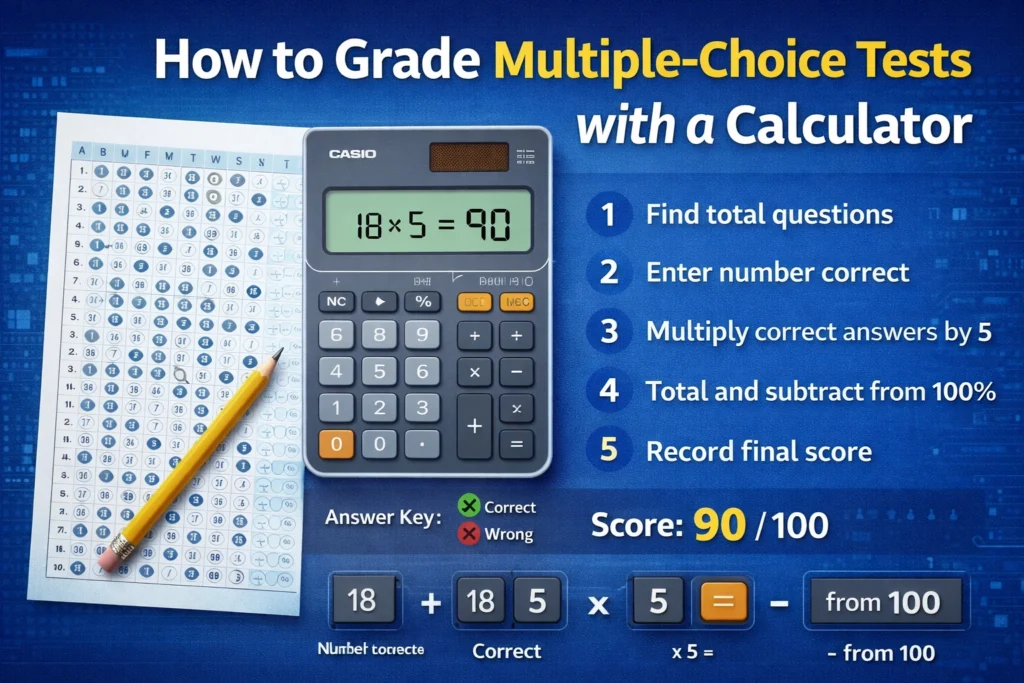
If you’re working with a paper test, use a basic calculator to count how many answers are correct. For example, if a student answered 7 out of 10 questions correctly, that student’s score is 7/10 or 70%. - Digital Tools:
If your students have completed the test online (e.g., Google Forms, Moodle, etc.), the platform can automatically grade the tests for you. Most of these tools will also calculate the percentage for you. You can also read: Why You Need a Digital Grading Calculator for Your Class
Step 4: Calculate the Grade
If you’re doing it manually or using a basic calculator:
- Count the correct answers for each student.
- Divide the number of correct answers by the total number of questions on the test.
- Multiply by 100 to get the percentage score.
For example:
- If a student answered 8 out of 10 questions correctly, the calculation would be:
- 108×100=80%
This gives you the student’s score instantly.
Step 5: Enter Results and Track Scores
Once you have the scores, you can track them in a spreadsheet or digital tool. If you’re using digital grading systems like Google Sheets, you can even set up automatic grading using formulas:
- Example: For the formula in Google Sheets, you can use
=COUNTIF(range, "correct answer")to calculate the number of correct answers.
Benefits of Using a Calculator to Grade Multiple-Choice Tests
1. Speed:
With a calculator (and digital tools), you can grade tests in minutes instead of hours. No more manually checking each answer one by one.
2. Accuracy:
Using a calculator ensures that you won’t miss any correct answers. It helps you avoid human errors, especially with larger classes.
3. Efficiency:
Once you set up a grading system (especially with digital tools), it works for multiple tests. You can simply input student answers, and the system calculates the grade for you.
Tips for Grading Multiple-Choice Tests with a Calculator
- Automate the Process:
If you’re using tools like Google Forms or Microsoft Forms, you can have students take the test online, and the system will automatically grade it. This removes the need for manual calculation altogether. - Double-Check Weights:
If your test includes questions that are weighted differently (e.g., some questions worth more than others), make sure to account for these weights in your calculation. You can do this by adjusting the formula in your calculator. - Use Bulk Grading:
Some tools allow you to upload all student answers and grade multiple tests at once. If you’re using a digital system, look for this feature to save even more time.
(FAQs)
1. Can I grade multiple-choice tests without software?
Yes! You can manually grade using a calculator by counting the number of correct answers, dividing by the total number of questions, and multiplying by 100.
2. Are there any free tools to automate grading?
Yes, tools like Google Forms, Quizizz, or Moodle offer free grading features that automatically grade and calculate the percentage.
3. How can I handle weighted questions?
If your test has weighted questions (e.g., some questions worth more than others), you can adjust the calculator’s formula to reflect the different weights. Digital tools often let you set weights for each question.
4. Can grading calculators also show students’ performance trends?
Some digital grading platforms offer analytics to show how each student performed on the test compared to the class average. This helps you identify areas for improvement.
5. How do I calculate partial credit for multiple-choice questions?
If you’re allowing partial credit (e.g., for choosing the right answer in a multi-part question), you’ll need to adjust your grading system to account for that. Some digital tools allow you to assign points for partial answers.
Final Thoughts
Grading multiple-choice tests doesn’t have to be a long, tedious process. With the right calculator or digital tool, you can grade tests in minutes, get accurate results, and spend more time focusing on helping your students succeed.
By using grading calculators, whether manually or through automated platforms, you streamline your grading process and make your job easier. So, go ahead, start grading with a calculator, and free up more time for the important parts of teaching!


