

How Grading Calculators Handle Weighted Assignments
As a teacher, you know that not all assignments are created equal. Some assignments, like final exams, are worth more than quizzes or homework. Quick Grade This is where weighted grading comes into play — and where grading calculators can really help.
Grading calculators are fantastic tools that help you quickly compute grades, especially when assignments have different weights. But how exactly do these calculators handle weighted assignments? Let’s break it down step-by-step.
What Are Weighted Assignments?
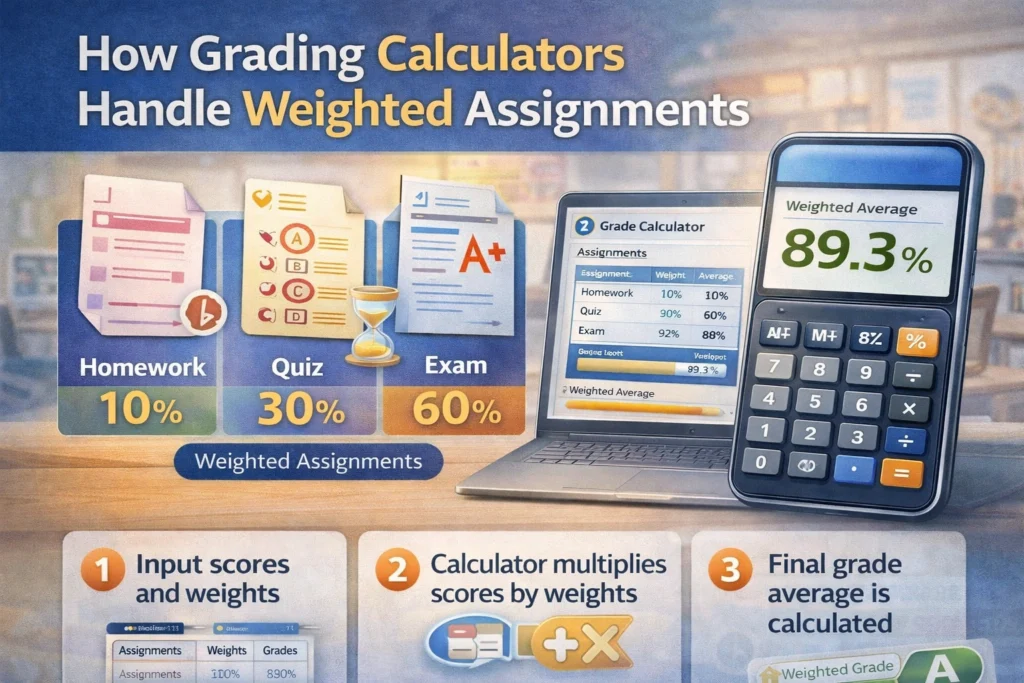
In a grading system with weighted assignments, different tasks or sections of a course contribute differently to the final grade. For example:
- Homework might be worth 20% of the total grade.
- Quizzes could be worth 30%.
- Exams might account for 50%.
The idea behind weighted assignments is that more important tasks (like exams) have a greater impact on the student’s final grade than less important ones (like homework).You can also read: Grading Calculators: Time‑Saving Tools for Every Teacher
How Do Grading Calculators Handle Weighted Assignments?
Grading calculators make the process of handling weighted assignments fast and easy. Here’s how they typically work:
Step 1: Input Scores for Each Assignment
You start by entering the raw scores for each assignment or task. For example:
- A student gets 85/100 on a homework assignment.
- A student scores 90/100 on a quiz.
- The student earns 88/100 on an exam.
These raw scores are the first thing the calculator needs to process.
Step 2: Enter the Weights of Each Assignment
Next, you’ll input the weight of each assignment. This tells the calculator how much each task counts toward the final grade. For example, in a course where:
- Homework is 20% of the grade
- Quizzes are 30%
- Exams are 50%
You enter these weight percentages into the calculator. The total weight across all assignments should add up to 100%.
Step 3: The Calculator Does the Math
Once you’ve entered the scores and weights, the grading calculator automatically applies the weights to each assignment’s score.
Here’s an example of how the calculator works:
- Homework score: 85/100 → 85% of 20% = 17%
- Quiz score: 90/100 → 90% of 30% = 27%
- Exam score: 88/100 → 88% of 50% = 44%
The calculator combines these weighted percentages to give you a final grade:
- 17% (homework) + 27% (quiz) + 44% (exam) = 88%
So, the final grade for this student would be 88%.
Why Use a Grading Calculator for Weighted Assignments?
1. It’s Fast and Accurate:
Grading calculators automatically calculate weighted grades for you, ensuring you don’t have to manually perform complex math. This is especially helpful for large classes or when dealing with multiple assignments.
2. It Reduces Errors:
Manually calculating weighted grades increases the chances of human error. A grading calculator ensures that the weights are applied correctly and consistently every time.
3. It Saves Time:
Instead of calculating each student’s grade one-by-one, you can use a grading calculator to process multiple grades in minutes. For bulk grading, this feature is a huge time-saver.
4. It’s Transparent:
By using a grading calculator, students can clearly see how each part of their grade is calculated. You can easily show them the breakdown of scores and weights if they ask for clarification.
How to Set Up a Grading Calculator for Weighted Assignments
Here’s a quick step-by-step guide on how to use a grading calculator for weighted assignments:
1. Find a Grading Calculator
Choose a grading calculator that allows you to input both scores and weights. There are many free online options, such as Calculator.net or GradeCalculator.
2. Enter the Scores
Input the raw scores (percentage or points) for each assignment.
3. Input the Weights
Enter the weight percentage for each task (homework, quizzes, exams, etc.). Remember, all weights should add up to 100%.
4. Calculate the Grades
Once the scores and weights are in, hit the calculate button. The calculator will give you the final weighted grade in seconds.
5. Review the Results
Check the results to ensure that the weights have been applied correctly. If you have multiple students, you can enter their scores and get results instantly for all of them.
Tips for Using Grading Calculators with Weighted Assignments
- Make sure the weights add up to 100%: If you accidentally enter the wrong weight, the final grade won’t be accurate. Always double-check the total before calculating.
- Use calculators that allow batch processing: If you’re grading a large number of students, use a calculator that lets you input multiple scores at once to save time.
- Save your results: Many calculators allow you to export or save results. This is helpful if you want to keep track of grades over time or need to report to school management.
(FAQs)
1. Can I use a grading calculator for any type of assignment?
Yes! Grading calculators can handle a wide range of assignments, from simple quizzes to complex projects. You can input scores for different types of work, and the calculator will apply the weights accordingly.
2. How do I handle extra credit with weighted grades?
Some calculators allow you to add extra credit once the weighted grades are calculated. If your class uses extra credit, you can typically add it at the end of the calculation, ensuring that the final grade is adjusted correctly.
3. What happens if I make a mistake entering the weights?
If you accidentally enter incorrect weights, the calculator will give you the wrong final grade. Always check that the weights add up to 100% before hitting calculate.
4. Do grading calculators work with different grading scales?
Yes! You can use grading calculators that work with different grading scales, such as points, percentages, or letter grades. Just ensure that you’re using the correct scale for your assignments.
5. Are grading calculators free to use?
Many grading calculators are free, but some advanced versions with extra features may require payment. For basic weighted grade calculations, free tools are usually sufficient.
Final Thoughts
Weighted assignments make grading more complex, but grading calculators simplify the process. They let you enter scores and weights and automatically calculate the final grade, saving you time and reducing errors. With these tools, you can quickly and easily handle weighted grades and give your students accurate feedback in less time.
Start using a grading calculator today and see how much time you can save on grading. Your students will appreciate the quicker turnaround, and you’ll appreciate the extra time for other tasks!


