

How to Import Answer Keys to Your Grading Tool 2026
Grading can be time-consuming, especially for quizzes and tests with multiple-choice or short-answer questions. A grading tool becomes even more powerful when you import answer keys, Quick Grade,letting the tool automatically score student work. Learning how to do this can save hours every week.

What is an Answer Key?
An answer key is a reference sheet that shows the correct answers for an assignment, test, or quiz. By importing it into your grading tool, the software can compare each student’s responses to the correct answers automatically and calculate scores instantly.
Why Importing Answer Keys Matters
Importing answer keys makes grading faster, more accurate, and less stressful. You don’t have to manually check each student’s answers, reducing errors and freeing up time for providing feedback or planning lessons.You can also read: Grading Calculator That Handles Extra Credit & Penalties
Step-by-Step Guide to Import an Answer Key
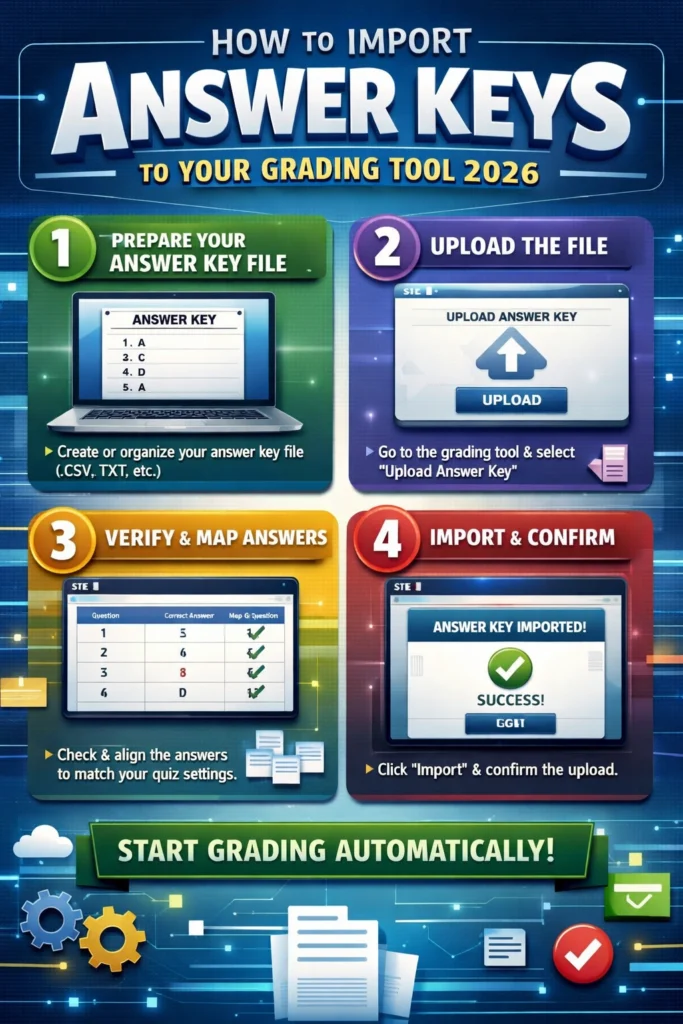
- Open your grading tool – choose the platform or software you want to use.
- Locate the import option – usually labeled “Import Answer Key” or “Upload Key.”
- Upload your answer key file – common formats include CSV, Excel, or text files.
- Map the questions – ensure each question in the tool matches the correct answer in your file.
- Save and apply – the tool is now ready to automatically grade student submissions.
Tips for Smooth Importing
- Check your file format – make sure it matches the grading tool’s requirements.
- Use consistent question numbering – misalignment can cause grading errors.
- Review before applying – quickly check that all answers match your key.
- Batch multiple quizzes – if your tool allows, import multiple answer keys at once to save time.
Tools That Support Answer Key Imports
Many modern grading tools allow importing answer keys:
- Google Forms – supports importing quizzes with correct answers for auto-grading.
- Gradescope – lets you upload answer keys for multiple-choice and numeric problems.
- Quizizz & Kahoot – allow uploading answer keys when creating quizzes.
- LMS platforms like Canvas – offer bulk upload of answer keys for automatic scoring.
Benefits of Using Answer Keys with Digital Tools
- Saves hours – no manual grading for every student.
- Increases accuracy – eliminates human math errors.
- Consistent scoring – every student is graded the same way.
- Easy record keeping – scores can be exported or synced to your gradebook.
Common Mistakes to Avoid
- Uploading the wrong file or format
- Skipping the question mapping step
- Forgetting to check for duplicates or missing questions
- Relying solely on automation for subjective answers
How to Customize Your Answer Key for Different Classes
You can create multiple answer keys if your class has different versions of the test. Customize the points or weights for each answer key to match your grading policy and assignment type.
Integrating Answer Keys with Your LMS
Many Learning Management Systems allow seamless integration of answer keys. Uploading your key directly to the LMS can automate grading for quizzes, save scores in the gradebook, and reduce manual work.
Handling Partial Credit
Some grading tools let you assign partial credit for certain questions. When importing your answer key, check if the tool allows adjusting points per question to reward partially correct answers.
Tracking Student Performance Over Time
Using answer keys with grading tools helps you track student progress across assignments. You can export reports, monitor trends, and identify students who may need extra help.
FAQs About Importing Answer Keys
1. Can I import answer keys for multiple-choice and essay questions?
Yes, most tools handle multiple-choice automatically. Essays may require manual review.
2. Do I need special software to import keys?
No, most grading tools and LMS platforms support standard formats like CSV or Excel.
3. Can I edit the answer key after importing?
Yes, you can usually adjust answers or points before grading.
4. Will this work for large classes?
Absolutely. Importing answer keys is ideal for grading dozens or hundreds of students efficiently.
5. Do imported answer keys replace teacher review?
No. While they handle automatic grading, teachers should still review subjective answers or assignments requiring judgment.
Final Words
Importing answer keys into your grading tool is a simple yet powerful way to save time, reduce errors, and streamline grading. By using answer keys correctly, integrating them with your LMS, and tracking student performance, grading becomes faster, more accurate, and far less stressful.


