

How to Use Grading Calculators for Quick Test Scoring
Grading tests can be time-consuming, especially if you have a large class or lots of different assessments to grade. But what if you could grade tests in minutes instead of hours? That’s where grading calculators come in. Quick Grade,These tools can help you calculate test scores quickly, accurately, and with less effort.
Let’s take a look at how you can use a grading calculator to speed up the process of scoring tests, so you have more time for teaching and feedback.
What Is a Grading Calculator?
A grading calculator is an online tool designed to simplify the process of calculating test scores. You can enter your students’ raw test scores, the total points possible, and sometimes even the weights of individual assignments or sections, and the calculator will do all the math for you.
With grading calculators, you can quickly convert raw points into percentages, apply weights, and even predict what scores are needed for students to reach specific grade goals.
How to Use Grading Calculators for Quick Test Scoring
Step 1: Gather Your Test Scores
Before you start using the grading calculator, collect the test scores you need to calculate. Whether it’s a multiple-choice test or an essay exam, write down the raw scores for each student.
Step 2: Choose the Right Calculator
Pick a calculator that works for the type of test you’re grading. If you’re grading a multiple-choice test, you’ll likely only need to enter the number of correct answers and total possible points. For more complex assessments, like essays or projects, you may want to enter different weight values for different sections of the test.
Step 3: Enter the Data
Once you have your calculator ready, enter the data:
- Student Name (if the calculator allows individual student tracking)
- Raw Score (the points each student earned)
- Total Points Possible (the maximum score for the test)
- Weights (if different sections of the test count more, such as essays or project-based questions)
Step 4: Hit Calculate
Once the data is entered, hit calculate. The calculator will automatically convert the raw scores into percentages and, in some cases, let you know what the final grade is based on the grading scale you input.
Step 5: Review the Results
The results should appear almost instantly. You’ll see each student’s final score, along with their grade (if you’ve set up grade boundaries) or percentage.
Step 6: Share the Results
Many calculators allow you to export the results or share them directly with students. You can keep a record for yourself or easily email them out for quick feedback.You can also read: How Grading Calculators Handle Weighted Assignments
Tips for Using Grading Calculators Effectively
- Double-Check Your Weights: If your test has sections with different weights (like 30% for a multiple-choice section and 70% for an essay), make sure you enter those weights correctly. Misplacing the weight of one section can throw off your entire grading.
- Check for Adjustments: Some students may have accommodations or extra credit. A good grading calculator lets you adjust scores on the fly, so you don’t have to recalculate everything manually.
- Use for Different Types of Tests: You can use grading calculators not just for multiple-choice tests, but for essays and even project-based assessments. Customize the tool to suit your grading needs.
- Test with Different Scenarios: Some calculators let you input hypothetical scores, so you can test how a student’s grade would change with different outcomes. This is great for showing students what they need to score on a final exam to pass the class.
Why Grading Calculators Save You Time
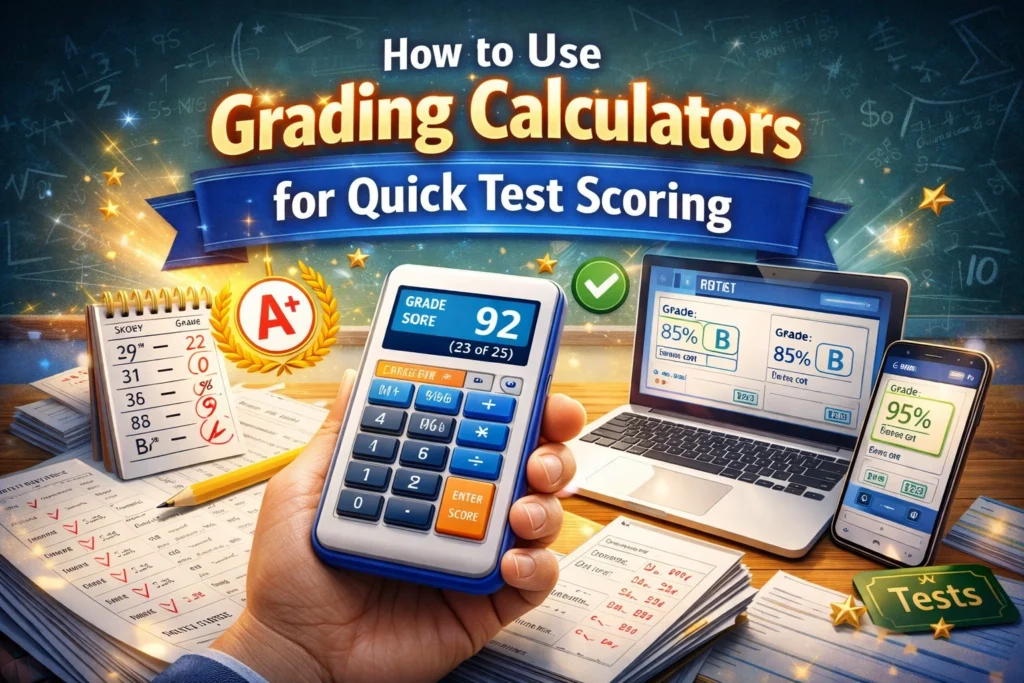
Grading calculators reduce the time spent on manual calculations, which means you can grade more quickly and focus on what matters: providing meaningful feedback to students. They help eliminate errors and make grading more consistent, which is essential for keeping things fair.
Some additional benefits include:
- Instant Results: No waiting around for your math to be double-checked.
- Reduced Stress: Less worry about making math errors or missing key steps.
- Increased Efficiency: Quickly move from one test to the next, especially if you have many students.
(FAQs)
1. Are grading calculators free?
Yes, there are plenty of free grading calculators available online. Many of them are simple, user-friendly tools that do all the math for you without requiring a subscription.
2. Can I use grading calculators for different types of assessments?
Absolutely! Many grading calculators are flexible enough to handle multiple types of tests, from multiple-choice quizzes to essay exams. You can enter scores for different sections and adjust the weights accordingly.
3. What if I need to give students extra credit?
Most grading calculators allow you to add extra credit after entering the raw scores. You can either increase the total points possible or add points to a student’s score.
4. How do I know if my calculator is accurate?
Before using it in a live setting, do a couple of test runs with known scores to ensure the calculator gives the correct results. Most calculators are designed to be accurate, but it’s always a good idea to double-check.
5. Can grading calculators predict final grades?
Some advanced grading calculators allow you to input upcoming assignments and projects, so you can predict what a student needs on the final exam to achieve a certain grade.
Final Thoughts
Grading doesn’t have to be a slow, stressful process. With the right grading calculator, you can save time, reduce errors, and give your students the feedback they need quickly. These tools help you keep grading fair and efficient, so you can spend more time doing what you do best — teaching.


