

How Canvas Grade Calculators Really Work
If you’ve ever wondered what’s happening behind the numbers in your Canvas gradebook, you’re not alone. Canvas grade calculators are tools that help you figure out your grade based on the grades you’ve already received and the rules your instructor set up. Quick Grade They take the work you’ve done, apply weights and rules, and then give you your current or projected grade.
This article breaks it down in simple terms, so you’ll know why Canvas shows the grades it does and how you can use this information to stay on top of your scores.
What the Canvas Grade Calculator Actually Does
Canvas doesn’t guess your grade. It calculates it using the scores entered by your instructor and the grading setup for your class.
At the most basic level, Canvas adds up the points you’ve earned and compares them to the total points possible. Then it turns that into a percentage that becomes your course grade.
So:
- Canvas looks at every graded item in your class (like quizzes, assignments, exams).
- It totals the points you earned.
- It totals the points possible.
- Then it divides the first number by the second to get your overall percentage.
Weighted vs. Simple Point Averages
There are two main ways Canvas can calculate your grade:
Simple Point System
In some courses, all assignments count toward your grade based on their points alone. If you earned 450 out of 500 possible points, Canvas would show 90%. This is straightforward math.
Weighted System
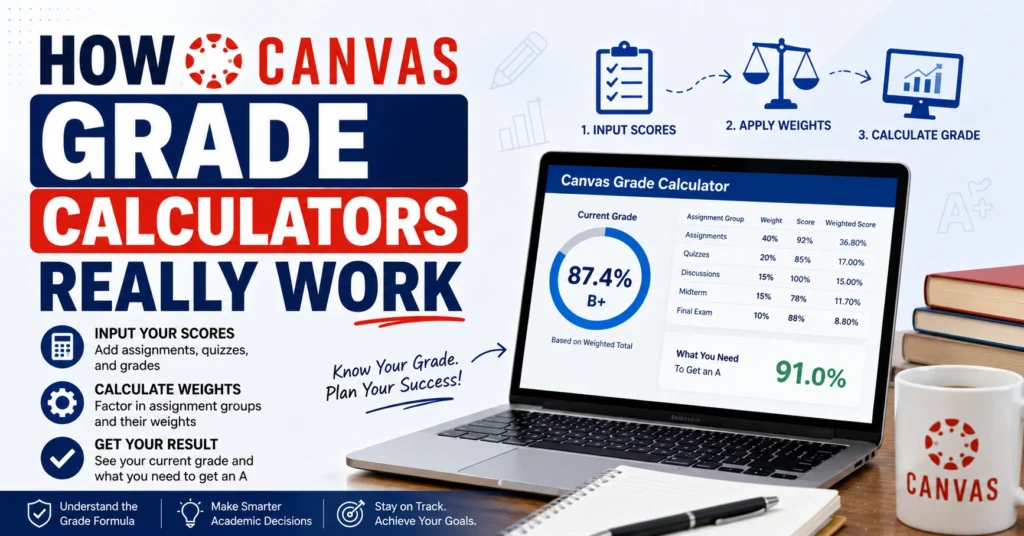
In many courses, assignments are grouped (like homework, tests, participation) and each group has a weight (like homework 30%, tests 50%, participation 20%). Canvas calculates each group’s average, then applies the weights to get your final grade.
For example, if homework counts for 30% and you got 90% in that group, Canvas multiplies 90% × 30% to get your contribution to the final grade.
How Canvas Uses Assignment Groups
Assignment groups are Canvas’s way of putting similar tasks together and giving them each a role in your overall grade. These might be categories like:
Canvas adds up the points within each group, finds the percentage for that group, then multiplies it by the group’s weight to help calculate your final grade.
This method lets instructors make quiz scores count less and test scores count more without manually changing every score.
What‑If Grade Tool — A Handy Feature
Canvas also has a feature called What‑If Grades. This doesn’t change your real score. Instead, it lets you try out hypothetical grades to see what your total would be if you scored a certain way on future assignments. This is useful for planning study time and goals.
You can enter a score you might get on an upcoming assignment and see how it affects your overall grade without touching the actual gradebook.
Letter Grades and Grading Schemes
Canvas doesn’t automatically know what letter grade goes with each percentage. Instead, your instructor (or your school) sets a grading scheme that tells Canvas how to turn percentages into letters.
For example, a default scheme might be:
- 94–100 = A
- 90–93 = A–
- 87–89 = B+
- …and so on.
This means Canvas could show you a “B+” even if the number is 88%.
Special Grade Rules You Should Know
Here are a few things that can affect how Canvas calculates grades:
Missing work
If an assignment has no grade yet, Canvas might treat it as missing or just ignore it until graded. This option depends on your instructor’s settings.
Dropped lowest scores
Some instructors set rules to drop a lowest score or two in a category. Canvas honors that rule when calculating your overall grade.You can also read: PowerSchool Grade Calculator Tips for Teachers
Bonus points or extra credit
Bonus points may count in Canvas differently depending on settings. Sometimes they can push your percentage above 100.
Why Your Canvas Grade Might Not Match Your Transcript
Canvas grade calculators show your grade in that course as it stands in the system. But your official transcript grade might differ because:
Think of your Canvas grade as a live estimate that usually matches the real grade but isn’t the final word until everything is finalized.
Tips for Working with a Canvas Grade Calculator
Here are some quick tips that students find helpful:
Check the syllabus early
This helps you know what each category is worth and how your instructor plans to assign weights, so you don’t rely on Canvas blindly.
Use What‑If Grades
Try entering different scores to see what you need on future assignments to hit your target.
Ask about missing grades
If something hasn’t been entered yet, your current grade might look better or worse than it really is.
Confirm bonus and extra credit rules
These are optional and might not affect your grade unless your teacher sets specific rules.
(FAQs)
1. How does Canvas decide my grade?
Canvas looks at all graded items, uses points and or weights, and calculates your percentage based on the rules in that class.
2. What are weighted grades?
Weighted grades let different types of assignments count more or less toward your final grade. Canvas calculates each weight separately.
3. Can Canvas tell me what I need on my final exam?
Not directly. But using What‑If Grades lets you check hypothetical outcomes based on your current scores.
4. Why does my letter grade show differently than I expected?
Your class’s grading scheme defines the ranges for each letter grade, so Canvas follows that setup.
5. Is the Canvas grade always final?
No. Canvas shows your current grade based on what’s entered. The final official grade may be confirmed by your instructor or registrar.
Final Words
Canvas grade calculators are powerful tools for understanding your progress in a course. By knowing how points, weights, and settings work together, you can make better study decisions, set realistic goals, and avoid surprises. Treat your Canvas grade as a helpful estimate, use tools like What‑If Grades to plan ahead, and always check your syllabus for the full grading picture.


