

PowerSchool Grade Calculator Tips for Teachers
As a teacher, you spend a lot of time setting grades, checking scores, and explaining results to students and parents.Quick Grade, PowerSchool has a flexible grade calculator inside its gradebook systems that does the heavy lifting for you — as long as it’s set up right.
In this article, I’ll walk you through how PowerSchool calculates grades, what settings matter most, and simple tips that make grading easier and more accurate.
How PowerSchool Calculates Grades
PowerSchool doesn’t just guess your students’ grades — it follows specific rules you or your school set up.
At the most basic level, PowerSchool uses formulas to take student scores and turn them into a final grade based on things like total points, weighted categories, or term averages. You choose how those grades should combine, and PowerSchool follows your instructions when it calculates.
There are a few popular grade calculation methods:
Total Points – adds all earned points and divides by the total points possible.
Weighted Categories – groups assignments (like homework, tests, projects) and gives each group a percentage weight.
Term or Standards Weighting – lets you mix grades from modules, quarters, or standards so each contributes the right amount to a final grade.
How you set this up affects the final grade students see.
Set Your Grade Calculation Early
One of the biggest tips for teachers is to set your grading calculations before you start entering scores.
If the gradebook is turned on before you finish setting up categories, weights, or grading periods, you might run into syncing issues later.
So before the first homework or test, make sure:
Getting this foundation right means the grade calculator will work exactly the way you intend.You can also read: Easy Grader for Homeschool Report Cards: A Simple Guide
Understand Weighting and Categories
PowerSchool lets you weight grades by category, but one thing to keep in mind is that weights you enter aren’t always percentages initially — they’re relative values.
For example, if you label quizzes 2 and labs 1.5, PowerSchool calculates category percentages from those values. That can look a bit odd, but it still gives you a correct weighted final grade if set up consistently.
Tip: Think of weights as “importance” rather than exact percentage numbers. If tests matter more than homework, give them a higher weight.
Define Grade Scales Clearly
PowerSchool uses something called a grade scale to turn points or averages into letter grades, numeric symbols, or other formats.
You can create different scales for:
Make sure your grade scale matches how you actually want to report scores. For example, don’t use a 100‑point numeric grade scale if you want letters only — that can confuse GPA calculations.
Keep Special Codes and Missing Grades in Mind
PowerSchool allows special codes (like “Absent”, “Incomplete”, or “No Credit”). These don’t automatically count as a grade unless you set them to be part of the grade calculation.
Also, when grades are missing, PowerSchool can either:
What you choose for missing grades changes final averages. Before grading begins, decide whether missing work should hurt a student’s average or be left out until scored.
Tips for Easier Daily Grading
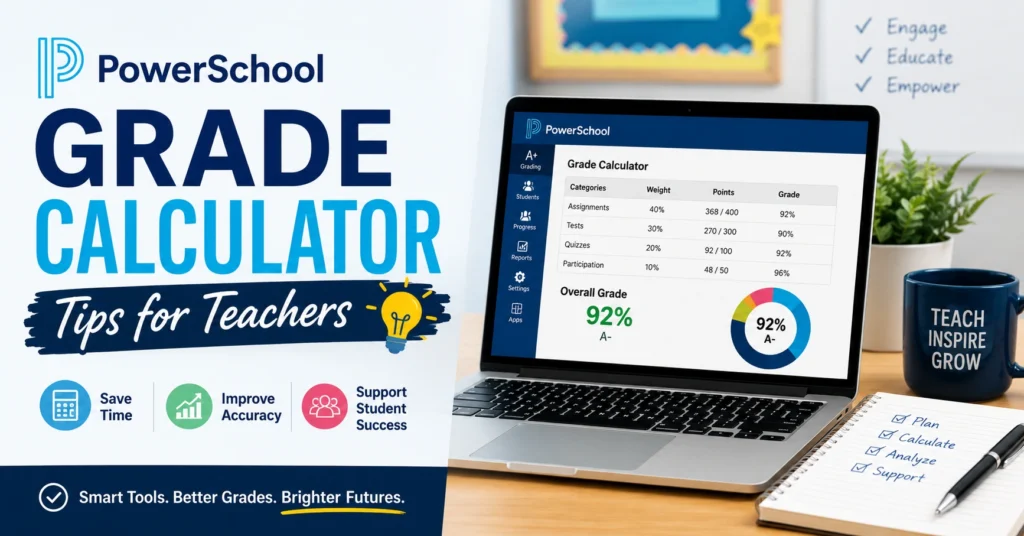
Here are tips many teachers find helpful when working with PowerSchool grade calculations:
1. Use consistent categories – Keep similar assignments grouped so weights make sense.
2. Check grade setup before you enter dozens of scores – Fixing categories later can be frustrating.
3. Preview grades before posting – Run a sample calculation after you enter a few assignments to confirm everything looks right.
4. Communicate your grading methods to students and parents – When everyone understands weighting and grade scales, there are fewer questions.
5. Double‑check weighting after copying gradebooks from year to year – Sometimes category weights don’t carry over exactly how you expect.
(FAQs)
1. How does PowerSchool decide a student’s final grade?
It uses the grade calculation method you set up, such as total points or weighted categories.
2. Can I change the grade calculation after entering scores?
Yes, but it’s best to finalize your settings before grading begins so you don’t have to fix a lot of scores later.
3. What if I want to exclude missing grades from averages?
You can set the grade calculation to ignore missing scores instead of counting them as zeros.
4. Do special codes affect calculations?
Special codes don’t count toward a grade unless your grade scale includes them.
5. Why does PowerSchool show different percentages than a hand calculator?
Weighted categories and grading scales mean PowerSchool doesn’t always do a simple points‑total average — it follows the rules you’ve set.
Final Words
PowerSchool’s grade calculator is powerful and flexible, but it only works exactly how you want when setup is clear and consistent. Taking time to define categories, weights, and grade scales at the start of a term saves headaches later. Communicate your grading plan to students, check calculations often, and use PowerSchool’s options to make grading fair and transparent.
With the right setup, PowerSchool becomes a tool that actually supports your teaching — not just another system to deal with.


